DesertStorm Controls — Full PC Keybind Reference
Complete PC controls for DesertStorm [EXTRACTION]: movement, combat, inventory, squads, tasks, and menu shortcuts for the Roblox alpha.
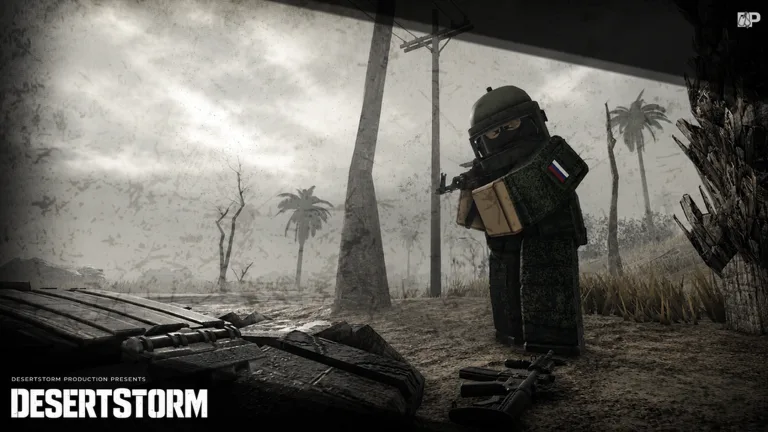
Mastering DesertStorm [EXTRACTION] controls is the fastest way to stop dying to your own inventory screen. This Roblox extraction shooter borrows heavily from hardcore FPS titles like Escape from Tarkov, which means every second spent fumbling for the right key is a second someone else spends lining up a headshot. Whether you are loading into the main Desertstorm Extraction map for the first time or returning after an alpha wipe, this page covers every default PC keybind we know about, plus practical tips that pair with our getting started guide and first raid walkthrough.
Movement and camera
DesertStorm uses standard first-person shooter movement on PC. W, A, S, and D move you forward, left, backward, and right. The mouse controls where you look and where your weapon points — there is no third-person toggle in extraction raids, so smooth mouse control directly affects your PvP survival. Hold Left Shift to sprint. Sprinting is loud and drains stamina in most extraction shooters, so use it when crossing open ground on the map overview or when rotating toward an extract under fire. Space jumps, and Left Ctrl crouches. Crouching reduces your profile behind cover and typically makes your footsteps quieter, which matters when pushing toward high-value loot zones or sneaking past other players near extraction points.
C usually toggles prone or a lower stance depending on the current alpha build — test it in the safe Introduction area before risking a raid. Leaning, if enabled, is often bound to Q and E; check the in-game settings under M → Settings because alpha patches sometimes remap secondary binds.
Combat controls
Left Mouse Button fires your weapon. Right Mouse Button aims down sights (ADS), tightening spread for medium and long engagements. Most players coming from arcade Roblox shooters underestimate how punishing hip-fire is here — read our PvP survival guide for when to hold angles versus wide swinging. R reloads. G throws grenades or lethal equipment when equipped. F interacts with doors, loot containers, bodies, and extract terminals. If you are carrying a secondary weapon, 1, 2, and 3 swap between primary, sidearm, and melee or utility slots depending on your rig.
Recoil and weapon handling vary by gun tier; cross-reference the weapons tier list before committing to a loadout in budget starter builds.
Inventory and looting
Two keys open your inventory in DesertStorm alpha builds: Tab and Caps Lock. Both serve the same function — use whichever is more comfortable. Your inventory is grid-based like Tarkov, meaning item shape and rotation matter. Drag items to your rig, pockets, backpack, and weapon slots while looting. Close inventory quickly when you hear footsteps; standing still in a menu is one of the most common causes of early deaths referenced in how to extract guides.
Double-click or drag to equip weapons and armor. Pay attention to weight — overloading slows sprint speed and can ruin your timing when running to a timed extract window.
Squads, menu, and tasks
K opens the Squads panel. Squad play changes raid economics: shared extracts, coordinated pushes on bosses covered in our boss fights guide, and safer looting rotations. Even solo players should know this menu in case you accept an invite mid-session.
M opens the main Menu — settings, graphics, audio, and sometimes keybind remapping during alpha. J opens Tasks, tying directly into trader progression explained in traders and tasks. Checking tasks before a raid prevents wasted runs where you loot the wrong items.
UI shortcuts and raid prep
While not always labeled on the default bind sheet, most alpha players keep Esc handy for the Roblox overlay and use the in-game map from the menu or a dedicated hotkey when available. Before your first serious run, walk through the raid checklist guide and verify every bind in the Introduction zone.
Mobile and controller support may differ; this page focuses on PC because that is where most extraction veterans play. If Roblox detects a gamepad, confirm binds under settings after each update.
Recommended practice routine
Spend ten minutes in Introduction practicing: sprint–stop–ADS–fire drills, quick Tab looting on a dummy body, and a full J-task review. Then queue into Desertstorm Extraction with a cheap kit from budget starter loadouts until muscle memory sticks. Pair that routine with the controls hub sibling pages as they are added, and revisit this reference after major patches — alpha rebalance passes sometimes add new interaction keys for traders, vehicles, or event modes like Deathzone and Zombie mode listed on the map page.
Video reference
Watch a full raid overview to see inventory, movement, and extract HUD in motion:
Frequently Asked Questions
Quick answers to the most common questions.
What key opens inventory in DesertStorm?
On PC, both Tab and Caps Lock open your inventory. They are interchangeable — pick one and stick with it so you do not hesitate mid-fight.
How do I open squads and tasks?
Press K for Squads and J for Tasks. The main menu is M. These keys are critical for group play and trader progression.
Does DesertStorm support controller on PC?
Roblox can pass controller input to supported experiences, but binds may not match this PC list. Always verify in M → Settings after an alpha update.
Can I rebind keys?
Check the in-game settings menu (M). Alpha builds sometimes ship without full remapping — if a bind is missing, report it on official channels linked from our [community resources page](/links/community-resources/).
What should I learn first?
Movement, ADS, inventory (Tab/Caps), and interact (F). Then read [how to play](/guides/how-to-play/) and practice in Introduction before risking gear.